

How to Pin Someone on Snapchat (Complete 2026 Guide)
Have you ever opened Snapchat and lost track of a conversation with a friend you really care about? You scroll, scroll, and scroll… only to wonder where that chat went. You’re not alone, and that’s exactly why learning how to pin someone on Snapchat can save you time and frustration.
Pinning a friend keeps their chat right at the top, so you can quickly find yourself in the conversations that matter most. No more endless scrolling or missing important messages. Whether you’re on iPhone or Android, the process is simple once you know the steps.
In this 2026 guide, we’ll show you how to pin chats, customize the pin icon, unpin when needed, and even troubleshoot if the option doesn’t appear. By the end, your Snapchat chats will be organized, easy to navigate, and stress-free.
What Does Pinning Mean on Snapchat?
Pinning on Snapchat is all about keeping your most important conversations right at the top of your chat list. Instead of scrolling endlessly, you can quickly find yourself in the chats that matter most, whether it’s your best friend, a family member, or a group you check daily.
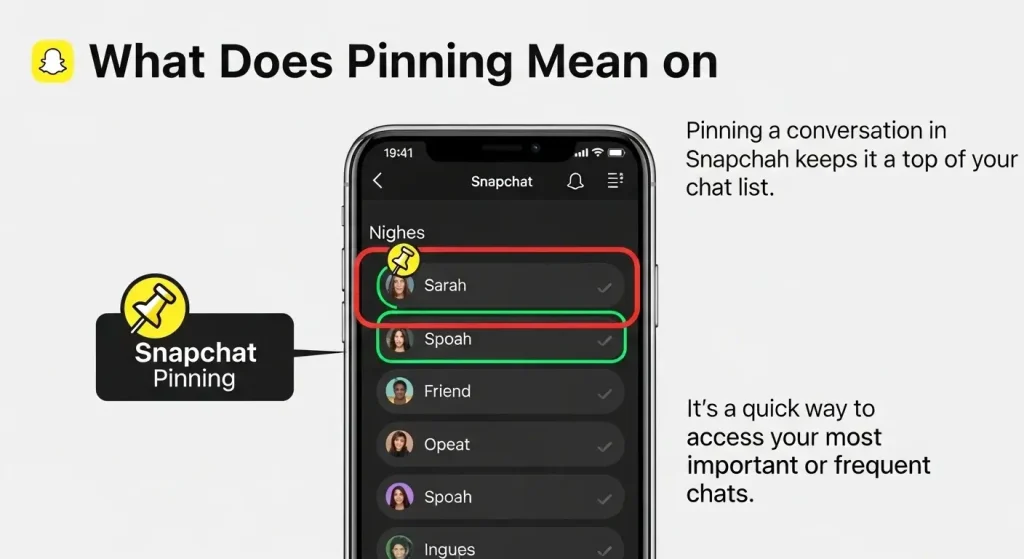
There’s a subtle difference between pinning a chat and pinning a person:
- Pin a chat: Locks a specific conversation thread—one-on-one or group—so it stays at the top.
- Pin a person: Ensures that a friend’s chat always remains visible, no matter how many new messages arrive from others.
People pin chats for different reasons:
- Keep streaks alive with close friends.
- Never miss important updates from key contacts.
- Quickly manage multiple conversations if you’re a creator, small business owner, or active user.
In short, pinning helps you stay organized and in control of your Snapchat conversations. Your favorite chats are always one tap away, making your day-to-day messaging smoother and faster.
How to Pin Someone on Snapchat (Step-by-Step for 2026)
Pinning a chat on Snapchat is quick once you know where to look. Whether you’re on iPhone or Android, the steps are slightly different but just as easy. Follow the instructions below to keep your favorite conversations at the top.
On iPhone (iOS)
- Open Snapchat and go to the Chat screen by tapping the chat bubble icon at the bottom left.
- Find the friend or conversation you want to pin. You can scroll or use the search bar to quickly locate them.
- Press and hold the chat until a menu appears.
- Select Pin Conversation from the menu. A small yellow pin icon will appear next to the chat, showing it’s pinned at the top.
- To unpin, press and hold the chat again and choose Unpin Chat.
Tip: Pinned chats stay at the top even if new messages come from other friends, helping you find yourself instantly in important conversations.
On Android
- Launch Snapchat and tap the chat bubble to access your chat list.
- Locate the conversation you want to pin. Use the search bar if needed.
- Long-press the chat until the options menu pops up.
- Tap Pin Conversation. You’ll see a yellow pin icon appear next to the chat.
- To unpin, long-press again and select Unpin Chat.
Quick tip: On Android, you can pin up to three chats at a time, so prioritize your closest friends or most active streaks.
You can also check Snapchat’s official pinning guide for the latest supported steps inside the app.
How to Pin a Group Chat
Pinning a group chat on Snapchat works similarly to pinning a one-on-one conversation, but it’s especially useful if you’re part of multiple active groups. Keeping a group pinned ensures you find yourself quickly in discussions that matter, like planning events, coordinating with friends, or staying updated with family.
Steps to Pin a Group Chat
- Open Snapchat and go to your Chat screen.
- Scroll or search for the group chats you want to pin.
- Press and hold the group chat until the menu pops up.
- Select Pin Conversation. The yellow pin icon will appear next to the group chat, keeping it at the top.
- To unpin, press and hold again and choose Unpin Chat.
If you manage multiple groups, consider pinning only the most important ones to avoid cluttering the top of your chat list.
Pinning group chats is a great way to stay organized and never lose track of conversations with multiple participants. It’s especially handy for those juggling personal and work or community chats on Snapchat plus.
What Happens When You Pin Someone on Snapchat?
When you pin a friend on Snapchat, their chat stays at the top of your chat list, making it easy to find yourself in your most important conversations. This is especially useful if you have many chats and want quick access to the ones that matter most.
Here’s what happens when you pin someone:
- Chat stays at the top: Pinned conversations are always visible, even if other friends send new messages.
- The yellow pin icon appears: This small icon marks which chats are pinned so that you can spot them quickly.
- No impact on streaks or notifications: Pinning does not affect Snap streaks, message notifications, or who can see your activity.
- One-tap access: Open pinned chats immediately without scrolling through other conversations.
Pinning keeps your most important conversations front and center. It is perfect for best friends, active streaks, or groups you interact with daily.
If your chat list feels overwhelming, review your pinned conversations. Keep only the chats that truly matter to stay organized and quickly find yourself in your favorite conversations.
How to Unpin Someone on Snapchat
If a pinned chat is no longer a priority, unpinning it is quick and simple. This is helpful when your priorities change, or you want to keep your chat list tidy.
Steps to Unpin a Chat
- Open Snapchat and swipe right to access your Chats.
- Locate the pinned conversation with the yellow pin icon.
- Press and hold the chat until a menu appears.
- Tap Chat Settings and then Unpin Conversation.
- The chat will move back to its normal position based on your most recent messages.
Troubleshooting If Unpin Isn’t Visible
Regularly review pinned chats to stay organized. Only pin the conversations you interact with most, so you can quickly find yourself in your important chats.
How to Customize or Change the Snapchat Pin Icon
The default red pin on Snapchat is functional, but it might not match your style. Luckily, you can customize the pin icon with any emoji to make your pinned chats feel more personal and easier to spot.
Steps to Change Your Pin Icon
- Open Snapchat and go to your Profile.
- Tap the gear icon to open Settings.
- Scroll down and select Manage under Privacy Controls.
- Tap Friend Emojis.
- Find the Pinned Conversation and select it.
- Choose any emoji you like. The selected emoji instantly replaces the red pin beside your pinned chat.
Customizing pin icons is a small change that adds fun, organization, and personality to your Snapchat experience. It’s a subtle way to keep your favorite conversations easy to access and visually distinct.
Pick emojis that help you find yourself quickly in your pinned chats. For example, use a star for your closest friend, a flame for someone you message daily, or a coffee cup for your favorite chat buddy. This makes your top conversations stand out at a glance.
Snapchat Pin Limit: How Many People Can You Pin?
On Snapchat, there is a limit to how many chats you can pin at once. Regular users can pin up to three conversations, while Snapchat+ subscribers can pin up to eight.
Snapchat+ users can also customize each pinned chat with unique emojis or colors. This helps you quickly differentiate between friends, family, and group chats, keeping your most important conversations visible at the top.
Only pin the chats you interact with most or need to access instantly. This way, you can find yourself easily in your pinned conversations without scrolling. Managing your pins wisely ensures your Snapchat inbox stays organized, making it easier to respond to top chats and keep streaks alive.
Privacy & Visibility: Can They See You Pinned Them?
No one can see if you have pinned them; the feature is completely private. Snapchat does not send alerts, messages, or notifications when you pin or unpin someone.
If a person deletes your chat or blocks you, the pinned conversation may disappear from your list. Even then, they will never know that you had pinned them. Think of pinning as your personal shortcut; it affects only your chat list and helps you quickly find your top conversations.
If someone appears in your chats after adding or tagging you, it also helps to understand what Added by Mention means on Snapchat before you reply, pin, or manage that conversation.
FAQs
Troubleshooting: Snapchat Pin Feature Not Working (2026 Fixes)
Sometimes the pin feature may not appear or work as expected. Here are practical fixes to get it running smoothly:
1. Refresh or Reopen the App
Close Snapchat completely and reopen it. Temporary glitches often disappear after a restart.
2. Update Snapchat
Ensure your app is up to date. Missing features, including pinning, often reappear after an update.
3. Check Device Compatibility
Older devices or outdated operating systems may not support all Snapchat features. Make sure your device is running the latest version of iOS or Android.
4. Clear Cache
On Android, go to Settings > Apps > Snapchat > Storage, then tap Clear Cache. On iOS, reinstalling the app clears temporary data.
5. Log Out and Back In
Sometimes logging out and back in refreshes account settings and restores missing features.
If the pin feature still doesn’t work, check Snapchat’s support page. Occasionally, features are rolled out gradually and may not be available for all users at once. Following these steps ensures you can easily find your way in pinned chats and keep your inbox organized without frustration.
Conclusion
Pinning chats on Snapchat is a simple yet powerful way to stay organized and keep your favorite conversations front and center. Whether you’re managing streaks, keeping up with friends, or prioritizing important groups, pins help you quickly find yourself in your inbox without endless scrolling.
Remember, you can customize pins, manage limits, and unpin chats whenever needed. With these tips, your Snapchat experience becomes faster, more personal, and easier to navigate.